SOP: Setting Up a Webhook with Zapier
Purpose:
To create a webhook in Zapier that receives data from an external app (e.g., SendGrid, Stripe, forms, custom apps) and triggers automated actions.
Who This Is For:
Team members responsible for integrations, automation, data syncs, or system workflows.
Time Required:
10–15 minutes
✅ Prerequisites
Active Zapier account
Access to the app sending the webhook (SendGrid, Stripe, custom app, etc.)
Data sample (recommended but optional)
Step 1: Create a New Zap
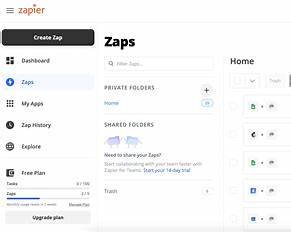
Log in to Zapier
Click Create Zap
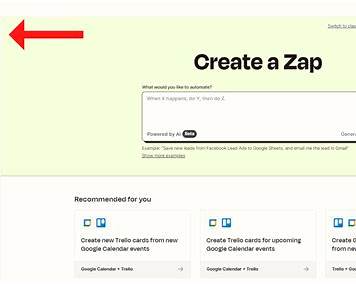

Step 2: Choose Webhooks by Zapier as the Trigger
In the trigger search bar, type Webhooks
Select Webhooks by Zapier
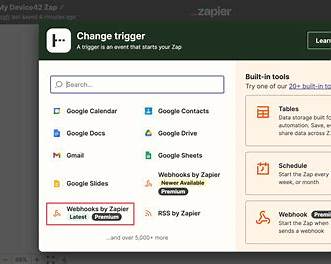
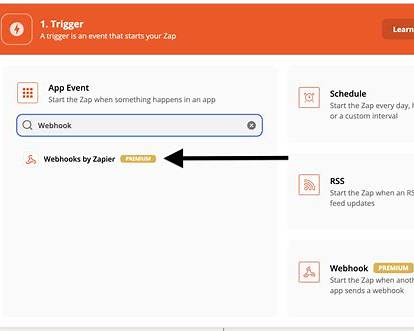
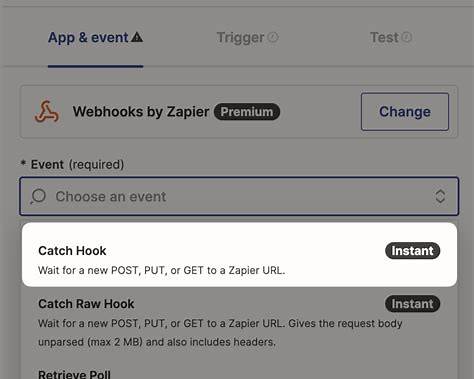
Step 3: Select the Webhook Event Type
Choose the appropriate trigger event:
Catch Hook → most common (incoming data)
Catch Raw Hook → for unparsed data
Retrieve Poll → polling-based data
? Select Catch Hook, then click Continue
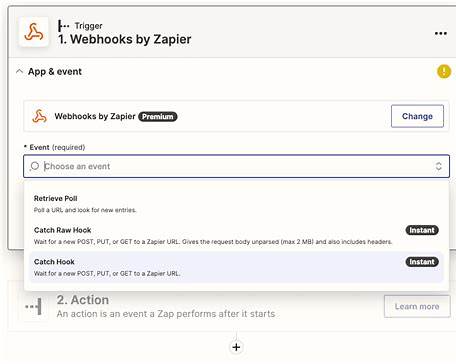
Step 4: Copy the Webhook URL
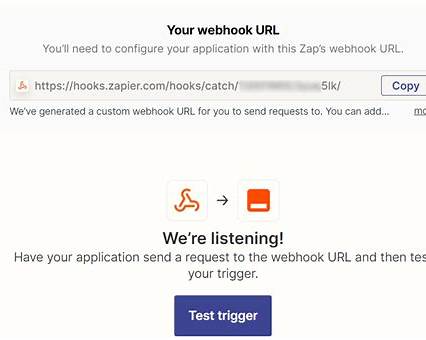
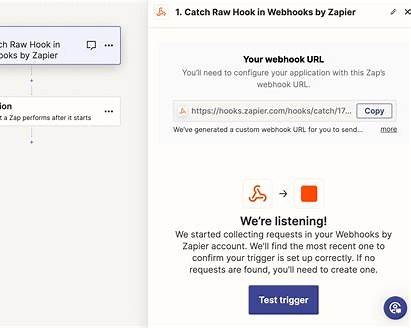
Zapier will generate a unique webhook URL.
Click Copy to copy the URL
Keep this tab open
? This URL is where data will be sent.
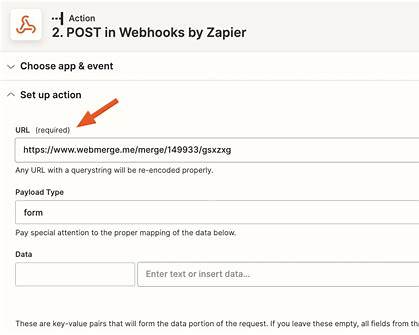
Step 5: Paste Webhook URL into the Source App
Go to RepuAgency that will send data to Zapier.
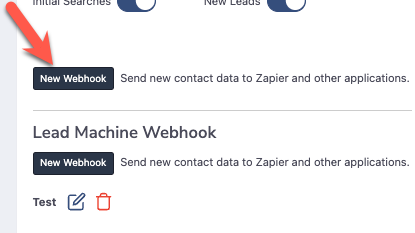
Click on Settings at the Agency level
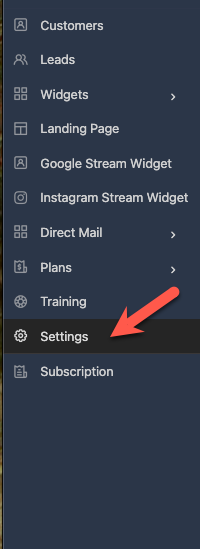
Then click on new webhook
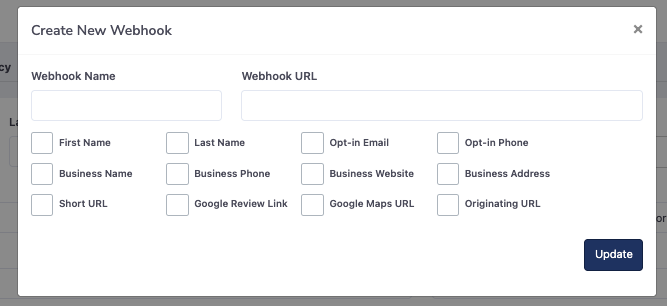
Then Name your webhook and paste in the URL. Choose the information you want sent.
Step 6: Send Test Data to Zapier
Trigger the webhook by:
Submitting a form
Sending a test event
Using a test payload
Return to Zapier
Click Test Trigger
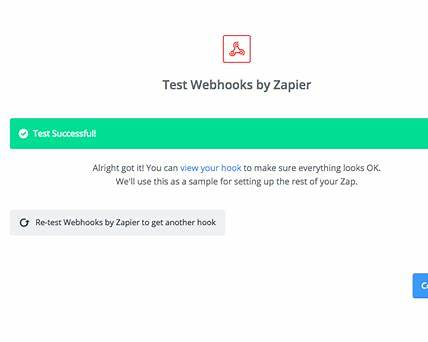
Zapier should successfully capture sample data.
Step 7: Review Incoming Data
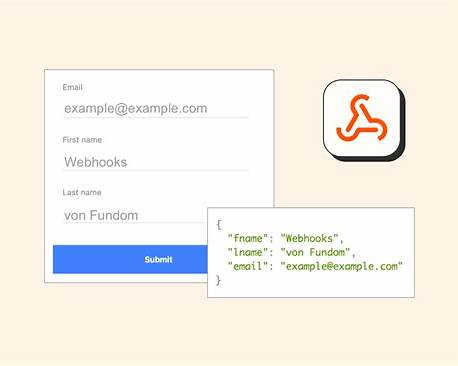
Zapier will display the data fields received:
Email
Event type
IDs
Timestamps
Custom fields
Confirm the data looks correct, then click Continue
Step 8: Add an Action Step
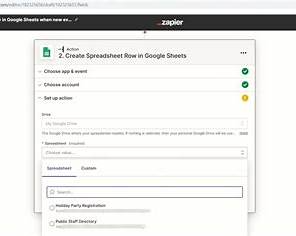
Choose the app to act on the data:
Google Sheets
Slack
CRM
Email
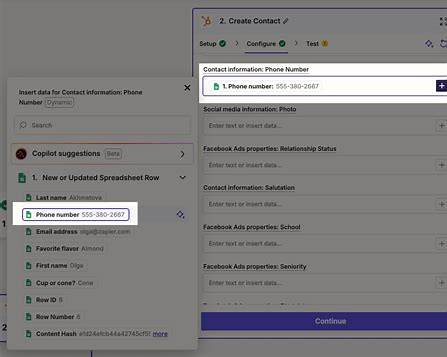
Map webhook fields to action fields
Test the action
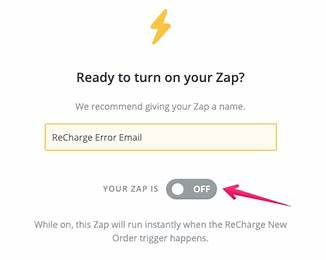
Step 9: Turn the Zap On
Name the Zap clearly
Toggle Zap ON
? Your webhook automation is now live.
❗ Common Issues & Fixes
❌ No Data Received
Confirm webhook URL matches exactly
Ensure source app is sending a POST request
Re-send test data
❌ Test Fails
Check payload format (JSON recommended)
Use Catch Raw Hook if needed
❌ Zap Not Triggering
Zap is OFF
No new events sent after activation
✅ Completion Checklist
Zap created
Webhooks by Zapier selected
Webhook URL copied
URL added to source app
Test data received
Action tested
Zap turned ON
? Best Practices
Name webhooks clearly (e.g.,
SendGrid Events → Slack)Use test payloads before going live
Document webhook URLs internally
Turn Zaps OFF before editing
Was this article helpful?
That’s Great!
Thank you for your feedback
Sorry! We couldn't be helpful
Thank you for your feedback
Feedback sent
We appreciate your effort and will try to fix the article